Every verse on the screen the moment it's preached
WorshipCast listens to the sermon, finds each Bible verse as the preacher reads it, and puts it on your projector by itself. Prefer to check each one first? Switch to Manual and it's one click. Songs, 150+ Bible versions and your church's name are ready from day one.
WorshipCast runs on Mac and Windows computers. Open this page on the computer connected to your projector to download it.

- Completely free
- Works offline
- 150+ Bible versions
- 6 languages
- 89 hymns & carols included
- Mac & Windows
A Sunday service in 35 seconds
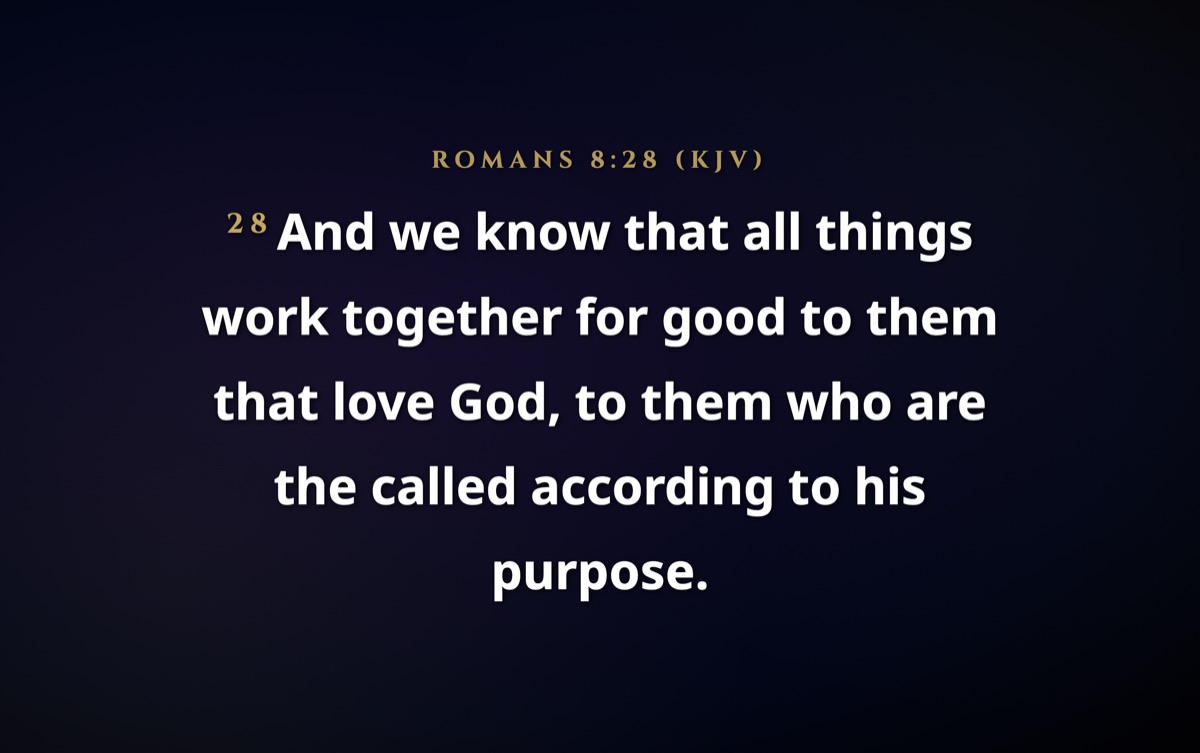
The preacher announces a verse and WorshipCast puts it on the screen by itself. Quote a verse without saying where it's from, and it finds that too. Then it's straight into the next song.
1. It listens
Connect a microphone or your sound desk. The sermon is transcribed live on your computer, so it works without internet.
2. It finds the verse
"Romans chapter eight, verse twenty-eight" or a quoted line: WorshipCast recognises both and lines the verse up for you.
3. It goes on screen
In Auto mode, verses it's sure about go straight to the projector with no one at the keyboard. In Manual mode, each one waits for your click.
Lyrics that fill the screen, so everyone can sing along
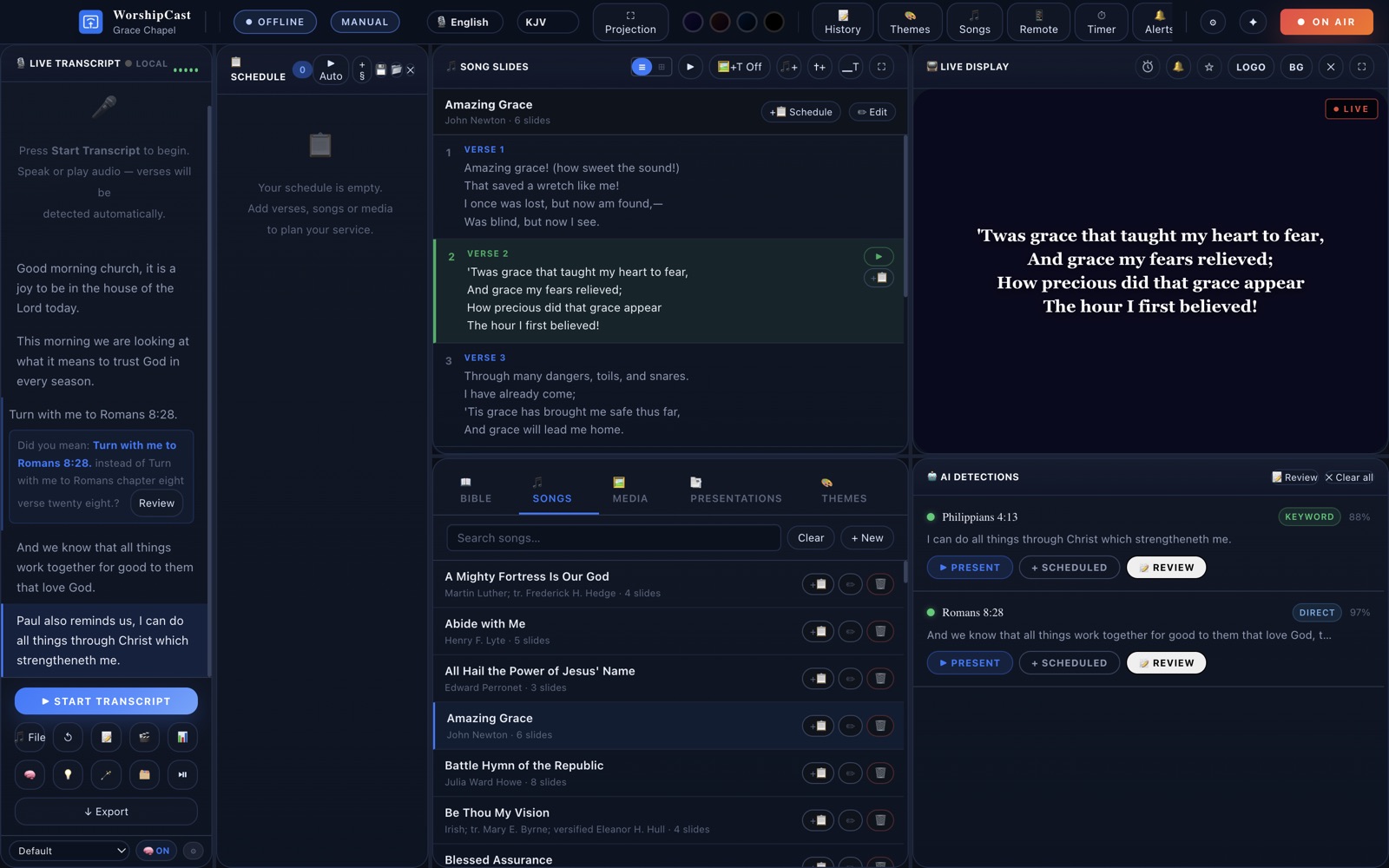
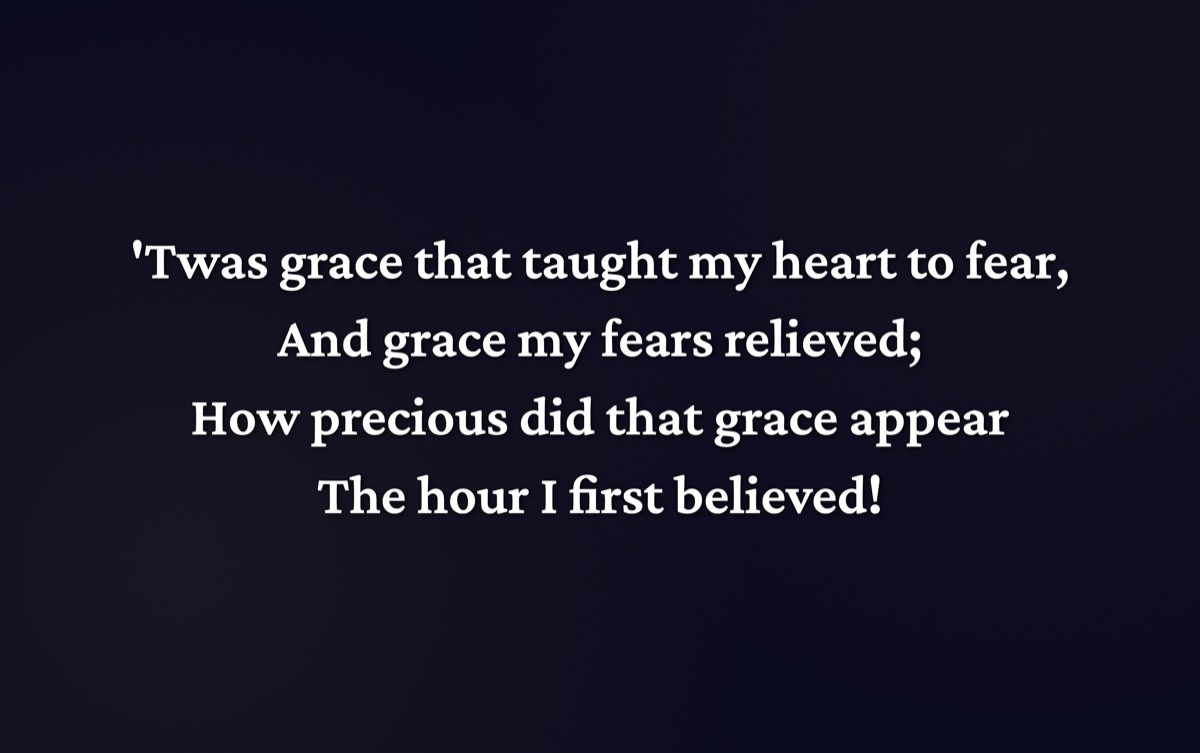
WorshipCast sizes every slide to the screen automatically: short choruses grow big, long verses still fit. Clear, bold and easy to read from the back row.
- 89 public-domain hymns, gospel songs and Christmas carols included
- Add your own songs, or import your library from EasyWorship
- Click any verse or chorus to put it on screen
NIV, NKJV, ESV, The Message and 150 more
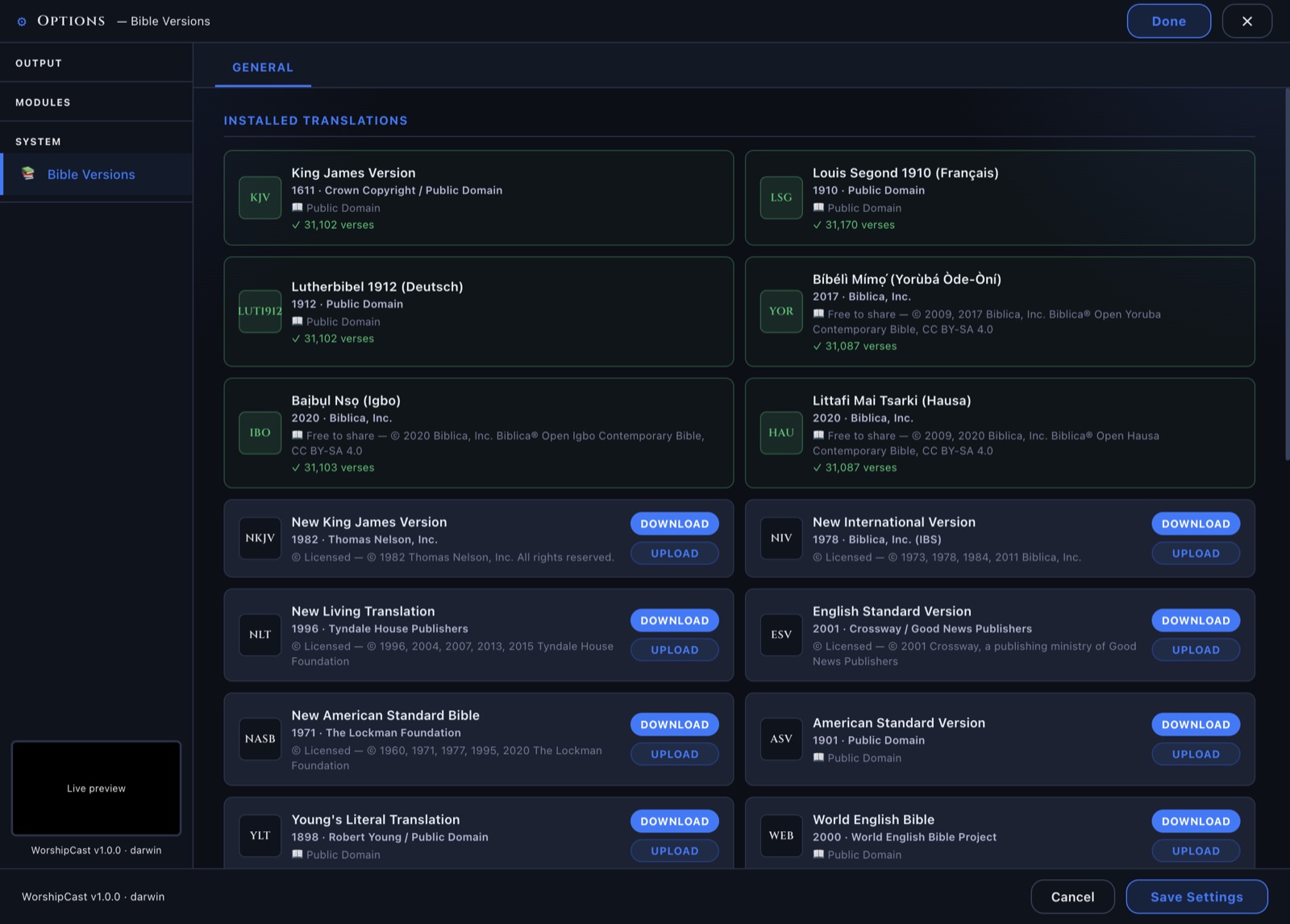
Six Bibles are built in, KJV included. Need another version? Download it from Settings in one click and it's ready for the service, searchable and detectable like the rest.
- NIV, NKJV, ESV, NLT, NASB, The Message, Amplified and more
- Over 150 translations in more than 30 languages
- Switch version from the top bar, even mid-sermon
Preach in Yoruba, Igbo, Hausa, French or German
Choose the sermon language when you open WorshipCast. It understands book names and numbers the way they're spoken in that language, and shows the verse from a Bible in the same language.
- Six Bibles built in, with the book names each one uses
- Tone marks and accents displayed correctly on screen
- Switch language or Bible from the top bar at any time
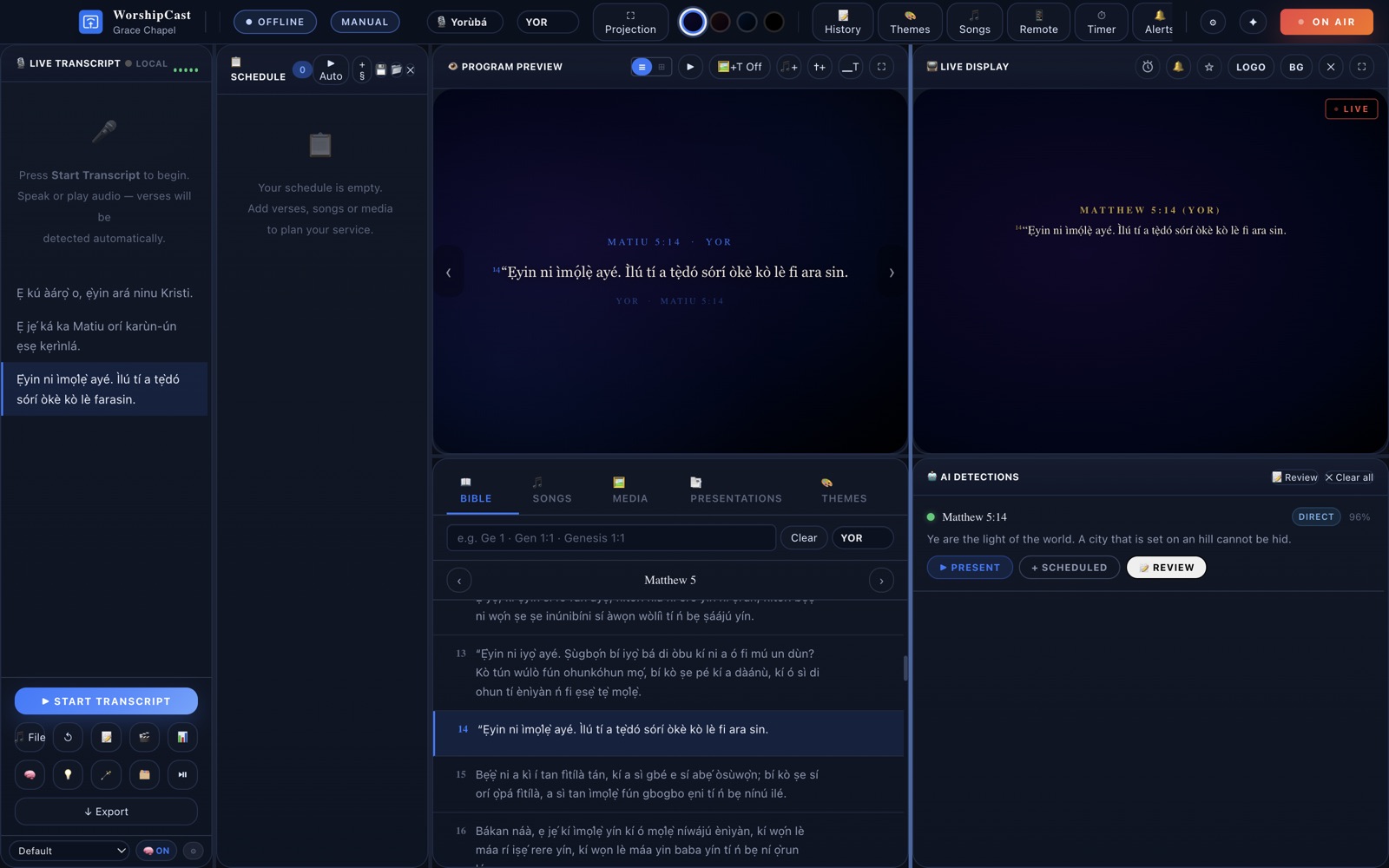
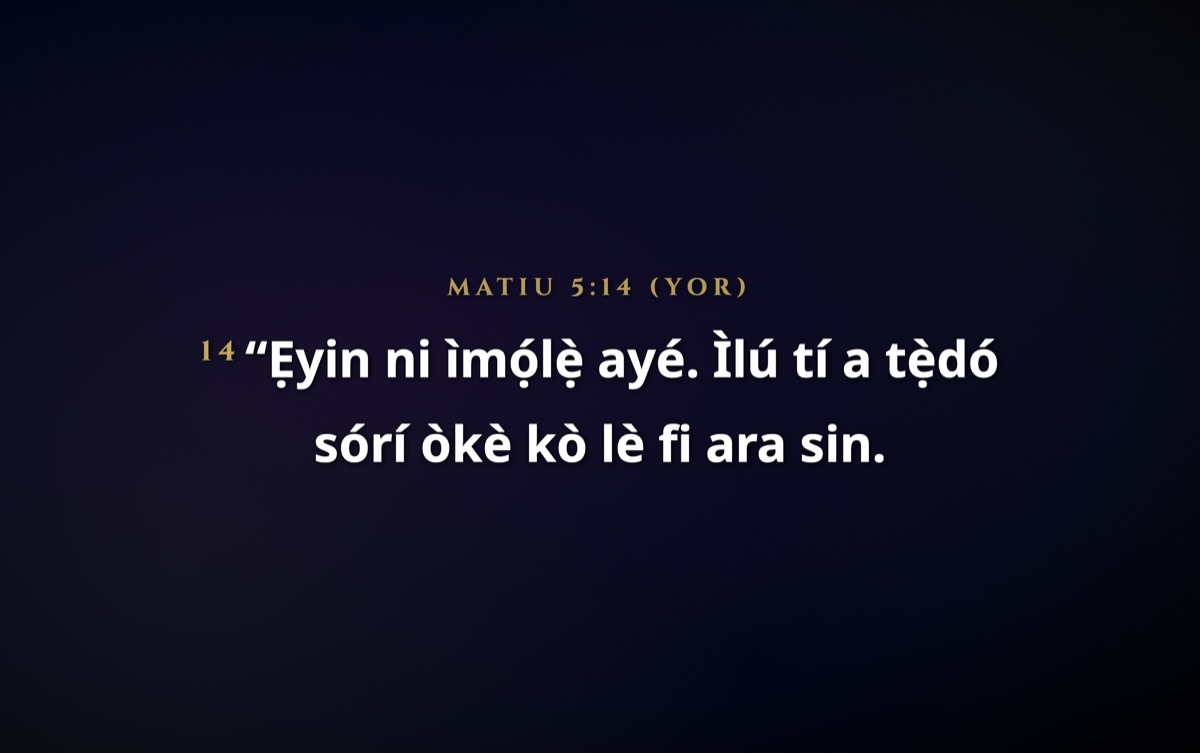
Made to be read from the back row
Bold text, sensible margins and your church's name when nothing else is showing.
Six languages, six Bibles, all included
Verse detection works in every one of them. Over 150 more Bible translations can be downloaded from Settings.
All you need on a Sunday
Service schedule
Plan songs, verses and media in order, then step through the service.
Phone remote
Move to the next slide from your phone, anywhere in the room.
Themes & backgrounds
Pick a look for scripture and songs, or use your own images and videos.
Media & slides
Show announcements, pictures, videos and presentations.
Timers & alerts
Countdown before the service, and quick on-screen notices.
Your church's name
In the app, on the projector's welcome screen and on the remote.
Works offline
After the first setup, the whole service runs without internet.
Private by design
The sermon is transcribed on your own computer, not on someone else's server.
Get WorshipCast for your church
Free, with nothing to pay later. Install it on the computer connected to your projector.
Mac
macOS 11 (Big Sur) or newer · Apple chip and Intel · about 200 MB
Download for MacOpening it for the first time
- Open WorshipCast-Mac.dmg from Downloads and drag WorshipCast into Applications.
- Open WorshipCast. When your Mac says it can't check the app, click Done.
- Go to System Settings → Privacy & Security, scroll down and click Open Anyway. You only do this once.
Windows
Windows 10 or 11 · 64-bit · about 100 MB
Download for WindowsOpening it for the first time
- Open WorshipCast-Windows-Setup.exe from Downloads.
- If you see "Windows protected your PC", click More info, then Run anyway.
- Follow the installer. WorshipCast appears on your desktop.
For sermon detection you'll also need a microphone or a feed from your sound desk, and about 1 GB of free space.
Frequently asked questions
Is WorshipCast really free?
Yes. There's no subscription, no trial and no ads. WorshipCast is supported by gifts from churches that find it useful, and giving is entirely optional.
Do we need internet during the service?
No. You need internet once, to install WorshipCast and its speech engine. After that, transcription, verse detection, Bibles and songs all work offline.
Can WorshipCast put verses on screen by itself?
Yes. In Auto mode, verses WorshipCast is highly confident about go straight to the projector as they're preached. If you'd rather check each one first, switch to Manual: verses are lined up for you and go on screen with one click. Switch between the two at any time from the top bar. You can also type any verse, like "John 3:16" or "Matiu 5:14".
Which Bible versions can we use?
The King James Version, Louis Segond (French), Lutherbibel 1912 (German) and Yorùbá, Igbo and Hausa Bibles come built in. From Settings you can download NIV, NKJV, ESV, NLT, NASB, The Message, the Amplified Bible and over 150 more translations in more than 30 languages, or upload your own. Many modern versions are copyrighted, so check the publisher's terms for showing them in your church.
What do we need for sermon detection?
A microphone near the pulpit or a cable from your sound desk into the computer, and about 1 GB of free space for the speech engine, which WorshipCast installs for you.
Is our sermon audio sent anywhere?
No. The sermon is transcribed on your own computer. (The only exception is if you choose to add a Spitch key for Yorùbá, Igbo or Hausa, which sends the audio to Spitch for transcription.) When you register, WorshipCast asks for your name, your church, and how to contact you, so we know which churches are using it.
Why does my computer warn me when I open it?
Mac and Windows show a warning for apps that haven't yet been through their paid signing programmes. Follow the "Opening it for the first time" steps above. You only need to do it once.
Free for every church, made possible by gifts
If WorshipCast serves your church well, you can help keep it free for churches everywhere.
Support WorshipCast